Edit instructions
Context menu
When you have selected an instruction by clicking on its keyword (turning its background blue), some immediate actions are available from its context menu which is opened either by clicking the right mouse button on the keyword, or by keying Ctrl+m. The commonest context menu shows these options, any one of which may then be clicked on to do the action:
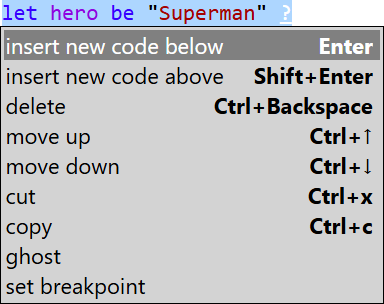
The context menu shows only those actions which are relevant to that instruction in its context.
The following is a list all possible menu items with key equivalents where applicable:
| do | undo | keyboard |
|---|---|---|
| ghost | unghost | |
| copy | Ctrl+c | |
| cut | Ctrl+x | |
| delete | Ctrl+Delete or Ctrl+Backspace | |
| insert new code below | Enter | |
| insert new code above | Shift+Enter | |
| move up | Ctrl+↑ | |
| move down | Ctrl+↓ | |
| set breakpoint | clear breakpoint | |
| clear all breakpoints | ||
| copy for external use | ||
| make private | make public | Ctrl+p (toggle) |
Select and edit a field
| To... | Keyboard shortcut | Mouse gesture | Notes |
|---|---|---|---|
| select any field within an instruction | click anywhere on the text, or placeholder, for that field. | Text cursor will be placed at the end of the field | |
| select the first field in a selected instruction | Tab | ||
| select the next field in the same instruction | Tab | will cycle through the fields and back to the whole instruction. | |
| select the previous field in the same instruction | Shift+Tab | will cycle through the fields and back to the whole instruction. | |
| select specific text within a field | Shift+← or → | click and drag across the desired characters | |
| select all text within a field | Ctrl+a | ||
| position text-cursor at the start of a selected field | Home | click anywhere within the selected field | |
| position text-cursor at the end of a selected field | End | click anywhere within the selected field | |
| go from the last field to the next instruction | Enter |
Insert a new instruction...
new code prompt where you want to insert an instruction then:
- select the 'new code' prompt (as you would select an instruction)
- type the first letter of the desired instruction, and more if several valid instructions begins the same way, until an instruction template is inserted, with the focus placed on its first field.
- key Enter to insert a 'new code' prompt below it, or
- key Shift+Enter to insert a 'new code' prompt above it.
Delete ...
| To delete | Keyboard shortcut | Notes |
|---|---|---|
| one or more (adjacent) existing instructions | select the instructions then Ctrl+Delete, Ctrl+Backspace or Ctrl+x | deleting a compound instruction will delete all its contained instructions |
| a just-created instruction | Backspace | this works only if no fields have been entered or 'child' instructions added |
| a 'new code' prompt that is not needed | delete the same way as an instruction | |
| all 'new code' prompts | Click on the Trim button or Alt+t | removes all 'new code' prompts except in places where further instructions are required (for example so as not to leave an empty loop) |
Undo or redo a recent change
| Action | Using the keyboard | Using the mouse |
|---|---|---|
| Undo previous changes | Ctrl+z | click on undo button |
| Redo previous undos | Ctrl+y | click on redo button |
Move instructions up or down within the same block
- Select the instructions, then key Ctrl+↓ or Ctrl+↑.
- Movement is limited to up or down within the current code block. To move instructions to a different code block use cut & paste.
(It is not currently possible to move instructions using the mouse alone).
Cut and paste
- To move one or more successive instructions to a new location within the program:
- Select the instructions to be cut, then key Ctrl+x.
- Create, or select, a
new code prompt where you want to paste in the cut instructions. - Key Ctrl+v to paste.
- To copy or move text between two fields in the program, or between program fields and external text:
- Use the usual select highlight text (Ctrl+a for all of a field) and Ctrl+c to copy or Ctrl+x to cut, and then Ctrl+v to paste it in.
Note that the pasted instructions must be compatible with their
new context, i.e. all of the instructions could have been created there in the first place.
If they are incompatible, no paste will take place and you will see a pop-up advisory message.
To restore the cut instructions to their original context, use
Ghosting
Instead of being able to 'comment out' code that you wish to retain but not execute, Elan provides a method for 'ghosting' sections of code with much the same effect, while leaving the ghosted code fully formatted.
- Select the single instruction (which may be a compound one, e.g. a
while loop, an entireprocedure or atest ) to be ghosted. - Ctrl+m or right-click on the instruction keyword, and choose
ghost from the context menu. - The instruction will be displayed in pale colours.
- The ghosted code will then be ignored by the compiler and, for ghosted tests, by the test runner. This means, for example, that you can create two different implementations of the same function and compare them, as long as one of them is ghosted.
- You can ghost code that does not compile, but you should not ghost code that does not parse: the ghosting will work, but you will not then be able to get the program as a whole to parse, and will have to unghost it again to fix it.
- To restore a ghosted instruction, Ctrl+m or right-click on it and choose
unghost . - Ghosted code can be copied, moved or deleted but, to edit ghosted code, you must unghost it first.
- A program containing ghosted code can be saved.
- Code containing ghosted instructions can be ghosted at a higher level, and remains ghosted when the higher level is unghosted.